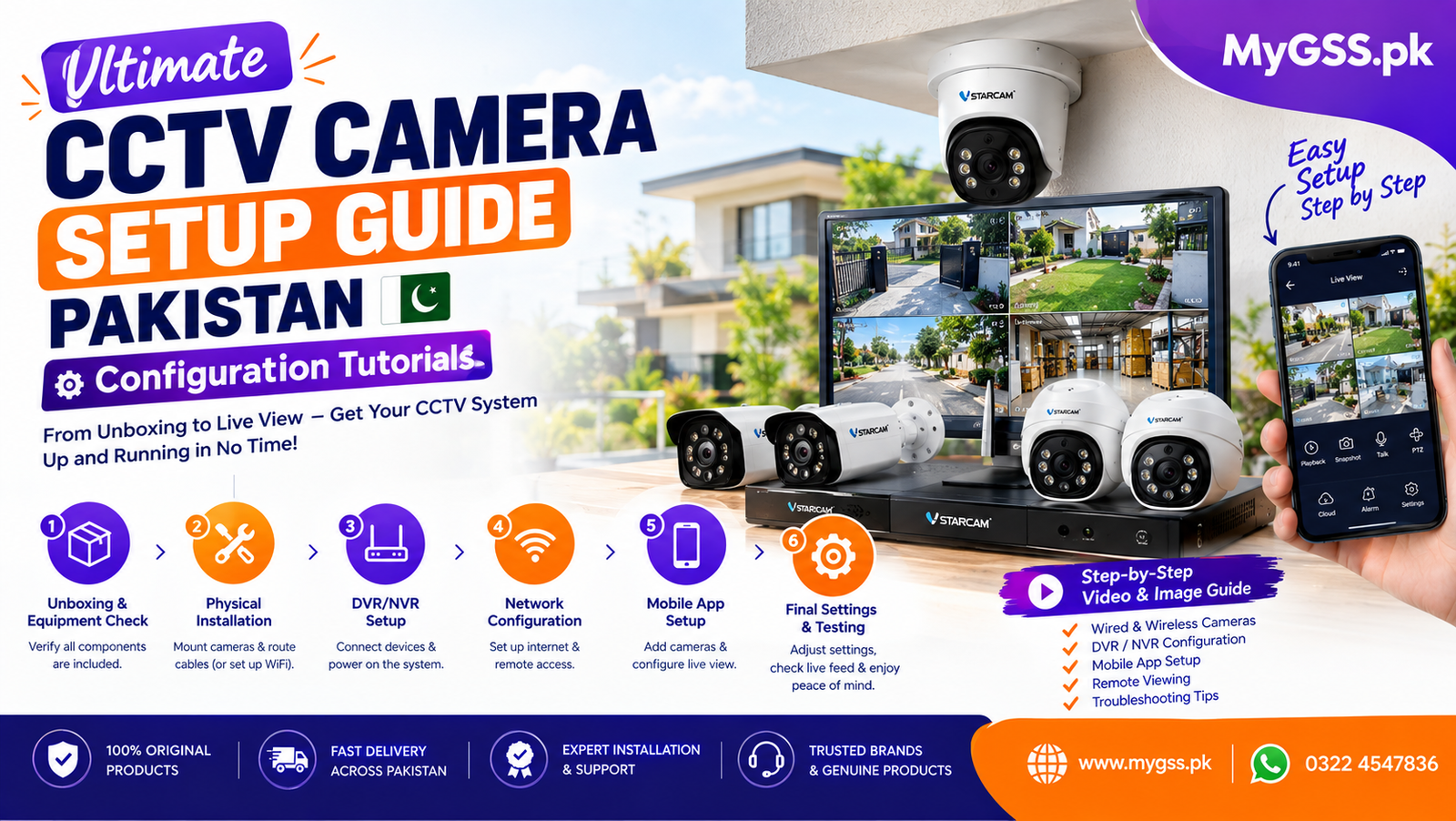
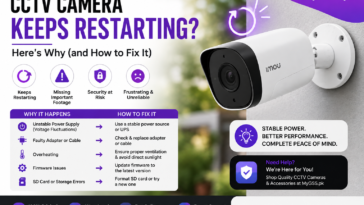
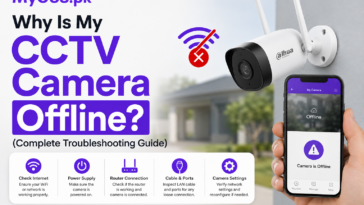
Ultimate CCTV Camera Installation Guide Pakistan | Configuration Tutorials 2026

How to connect cctv camera

This ultimate installation guide will show you exactly how to connect your CCTV camera to your mobile phone for instant, 24/7 peace of mind. Learn the simple steps to set up live viewing for all major security camera brands—including IMOU, Ezviz, Tenda, VStarcam, V380, ICSEE, TP-Link, Hikvision and Dahua—so you can monitor your property directly from your smartphone, anytime, anywhere.

How to Setup V380 Pro Camera & connect to Mobile Phone

  1. Download the V380 App (iOS / Android / Windows
  2. Power on the camera and wait for the voice prompt
  3. Connect your phone to WiFi, then open the app and tap “Add Device”.
  4. Choose “WiFi Smart Camera”, then follow the on-screen steps to scan the QR code.
  5. Once connected, name your camera and start live monitoring for more guide watch this video

Vstarcam (O-Kam Pro) WiFi Camera Installation Guide - Configuration Tutorial

  1. Download App → Install O-Kam Pro from Play Store / App Store.
  2. Login/Register → Create or sign in to your account.
  3. Power On Camera → Plug in, wait for “Wi-Fi configuration” prompt (reset if needed).
  4. Add Device → Tap + → choose Wi-Fi Smart Config.
  5. Enter Wi-Fi → Put your 2.4 GHz Wi-Fi name & password → show QR code to camera.
  6. Wait for Connection → Camera says “Wi-Fi connected” → shows Online.
  7. Name & Save → Give a name → Done.
  8. Adjust Settings → Motion alerts, PTZ, recording, notifications

ICSEE CCTV Camera Installation Guide - Configuration Tutorial

  1. Download the ICSEE app from Google Play, App Store & Windows
  2. Power on the camera and wait for it to initialize (you may hear a voice prompt)
  3. Open the ICSEE app, tap “Add Device”, and select “WiFi Config”.
  4. Enter your WiFi name and password, then show the QR code (from the app) to the camera lens.
  5. Once connected, you’ll hear a confirmation sound. Name your device and you’re ready to go!Enjoy live view, motion alerts, night vision, and two-way audio – right from your phone.

IMOU WiFi CCTV Camera Installation Guide - Configuration Tutorial


  1. Download the IMOU Life app from the App Store (iOS), Google Play Store (Android) or Windows
  2. Plug in and power on the camera. Wait for the voice prompt or LED indicator showing it’s ready to connect.
  3. Open the IMOU Life app, tap the “+” icon to add a new device.
  4. Scan the QR code on the camera or manually select the model.
  5. Choose WiFi Setup, enter your WiFi name and password, and follow the on-screen instructions.
  6. Once connected, assign a name to your device and enjoy live streaming, playback, and motion alerts.

Dahua CCTV Camera Installation Guide - Configuration Tutorial Whether you’re using a DVR/NVR

  1. Download the DMSS app from Google Play or the App Store.
  2. Power on the camera and connect it to your WiFi or router (via LAN).
  3. Open the DMSS app, tap “+”, then select “Scan” and scan the QR code on the camera.
  4. Follow the on-screen instructions to connect the device to your WiFi and set a secure password.Name your camera and start viewing live footage anytime, anywhere for more guide watch this video

TP-Link Tapo CCTV Camera Installation Guide - Configuration Tutorial

    1. Download the Tapo app from Google Play or the App Store.
    2. Plug in and power on the camera – wait for the LED to blink red and green.
    3. Open the Tapo app, tap the “+” icon, and select your camera model.Connect to the camera’s temporary WiFi network (shown in the app).
    4. Enter your home WiFi name and password to link the camera Once connected, name your camera and choose a location (e.g., Living Room, Office Done! Start live viewing, set up motion alerts, and customize your security settings.watch this video for more guide.

EZVIZ CCTV Camera Installation Guide - Configuration Tutorial

    1. Download the EZVIZ app from the App Store or Google Play.
    2. Power on the camera and wait for the voice prompt.Open the app, tap “+”, and scan the QR code on the camera.
    3. Follow the steps to connect the camera to your WiFi network.
    4. Once connected, name your device and start live monitoring

Tenda Smart WiFi CCTV Camera Installation Guide - Configuration Tutorial

    1. Download the Tanda Cam app from the App Store or Google Play.
    2. Power on the camera and wait for the voice prompt or LED indicator.Open the app, tap “Add Device”, and follow the on-screen instructions.
    3. Connect the camera to your WiFi network by entering your WiFi name and password.
    4. Once connected, name your camera and start live viewing from your phone!for more guide watch this video.

V380 Solar 4G CCTV Camera Installation Guide - Configuration Tutorial

    1. Download the V380   app (iOS / Android / Windows
    2. Insert an active 4G SIM card with data into the camera.
    3. Add camera by scanning QR Code
    4. Once connected, name your camera and start live viewing from your phone!for more guide watch this video.

CCTV Camera Installation Cost in Pakistan

Setup Estimated Cost (PKR)
Single WiFi Camera Free – 1,000
2 Camera Setup 2,000 – 4,000
4 Camera DVR System 5,000 – 10,000
8 Camera System 10,000 – 20,000

 Note: WiFi cameras generally don’t need professional installation, while Wired and multi-camera setups may require expert help.

Read Alo:

How to Setup & Register 4G SIM Camera in Pakistan with PTA – Ultimate Guide

How to Set Up 4G Camera: A Step-by-Step Guide for Beginners

Comment (1)

Leave a Reply

Shopping Cart (0)

Your bag is empty

Don't miss out on great deals! Start shopping or Sign in to view products added.

Shop What's New Sign in