Your bag is empty
Don't miss out on great deals! Start shopping or Sign in to view products added.
Shop What's New Sign in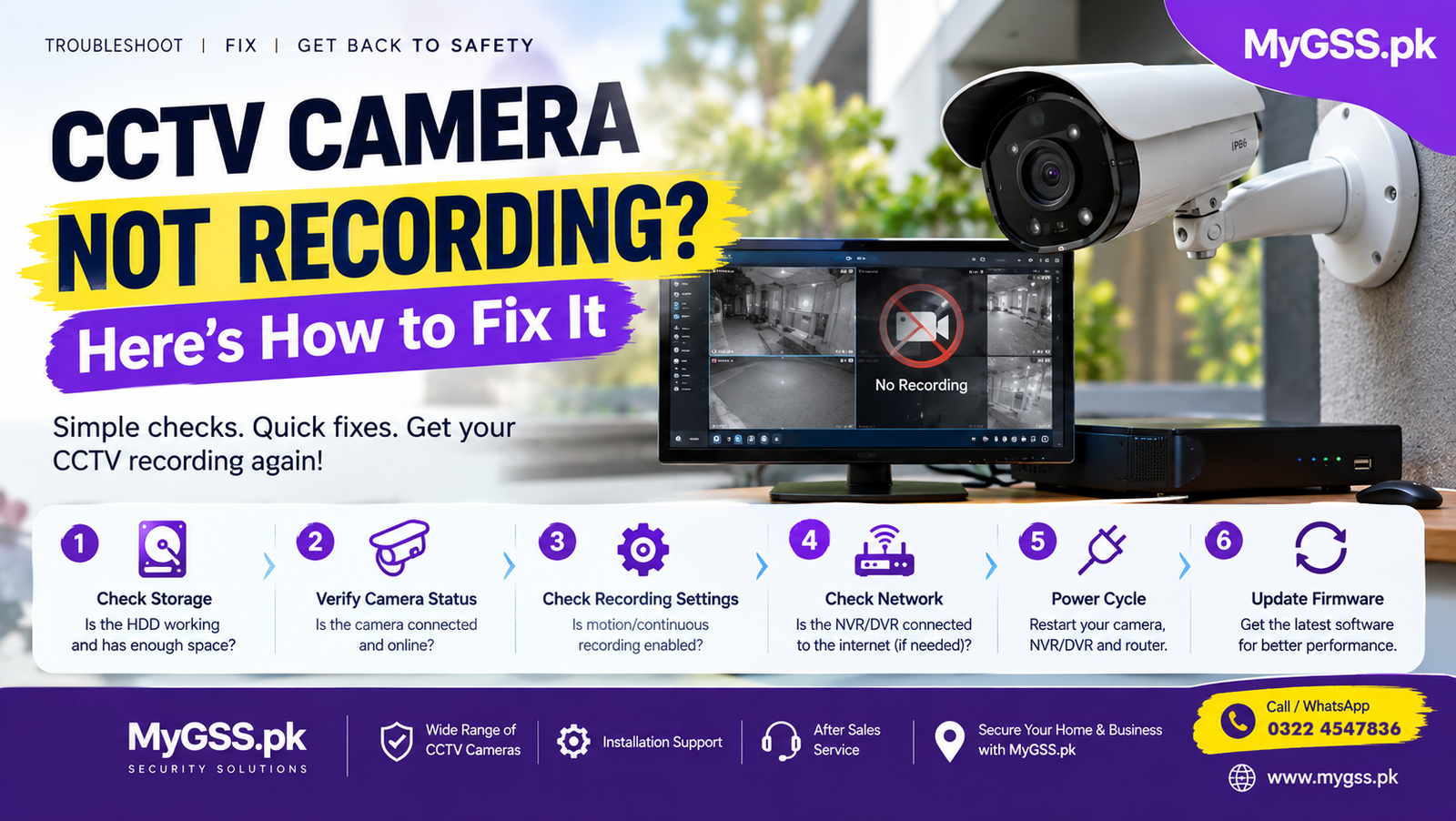
Realizing your CCTV camera isn’t recording is one of the most frustrating security problems you can run into — usually you only notice when you actually need the footage. The good news is that “not recording” almost always comes down to a small number of common causes, and most of them you can fix yourself in a few minutes without calling anyone out.
This guide walks through the most common reasons a cctv camera stops recording, in the order you should check them, whether you’re running a standalone WiFi camera or a full DVR/NVR system.
Before diving into fixes, it helps to understand what’s usually behind the problem:
Walking through these one at a time will usually isolate the issue quickly.
This is the single most common cause. Most wifi camera models overwrite old footage automatically once storage fills up, but if that setting is off, recording simply stops. Open your camera’s app (VStarcam Ultra, IMOU Life, EZVIZ App, DMSS, Hik-Connect, Tenda Security, or Tapo App, depending on your brand) and check the storage status. If it’s full, either enable auto-overwrite or clear old footage manually.
Many cameras let you set specific recording hours or days. If a schedule was configured — even accidentally — recording will only happen during those windows. Check the schedule settings in your app and make sure “24/7” or your intended hours are actually selected, not just saved as a draft.
If your camera is set to motion-triggered recording rather than continuous recording, low sensitivity settings can mean it simply isn’t detecting movement. Test this by walking in front of the camera and watching for a live alert. If nothing triggers, lower the sensitivity threshold in the app and test again.
SD cards and hard drives wear out, especially in continuous-recording setups. Signs of a failing storage device include recordings that stop mid-file, corrupted playback, or the app reporting a card error. Try:
If a hard drive on a DVR/NVR system is the issue, most systems will show a storage error on the local display or app dashboard.
Loadshedding is one of the most common causes of recording gaps in Pakistan. If your setup doesn’t have battery or UPS backup, a power cut simply stops recording until power returns — and depending on the camera, it may not resume automatically. A 4G camera with solar backup is worth considering specifically to avoid this gap, since it keeps recording independent of grid power.
For cameras that rely on cloud recording or that need network access to write to a connected NVR, a dropped WiFi or internet connection will interrupt recording. Check the signal strength in the app, and if the camera is far from your router, consider a WiFi extender or switching to a wired connection where possible.
It sounds basic, but a simple restart resolves a surprising number of recording issues, especially ones caused by a temporary software glitch. Power-cycle the camera, then the router, and give both a minute to fully reconnect before checking recording status again.
Outdated firmware can cause recording bugs, especially after an app update changes how the camera communicates. Check for a firmware update in your camera’s app settings, and make sure the camera stays powered and connected throughout the update process.
If you recently swapped in a new SD card or hard drive, make sure it’s formatted in a file system your camera or DVR actually supports (commonly FAT32 for SD cards under 32GB, exFAT for larger cards). An incorrectly formatted card can appear to work but silently fail to save footage.
If none of the above resolves it, inspect the camera and cabling for physical damage — a loose connector, water damage on an outdoor unit, or a failing sensor can all stop recording even when the camera otherwise looks functional. At this point, it’s often more cost-effective to replace the unit than to keep troubleshooting an aging camera.
If you’re running a multi-camera system through a DVR or NVR rather than a standalone WiFi camera, also check:
As a rough guide:
If you’re shopping for a reliable replacement, it’s worth choosing a security camera from an authorized dealer so you have manufacturer warranty support if something similar happens again. You can compare current models and cctv cameras price in pakistan on the security cameras category page.
Why did my CCTV camera suddenly stop recording? The most common causes are full storage, a disabled or misconfigured recording schedule, a power interruption, or a failing SD card or hard drive. Working through these in order usually identifies the cause quickly.
Why does my camera record sometimes but not continuously? This usually means the camera is set to motion-triggered recording rather than continuous recording, or that the recording schedule only covers specific hours. Check both settings in your camera’s app.
Can loadshedding cause my CCTV camera to stop recording? Yes. If your camera or DVR/NVR system doesn’t have battery or UPS backup, a power cut will stop recording until power is restored, and some systems won’t resume automatically. A 4G camera for home with solar backup avoids this issue entirely.
How do I know if my SD card has failed? Common signs include recordings that stop mid-file, corrupted or unplayable footage, or a storage error shown in the camera’s app. Reformatting the card sometimes resolves minor corruption, but frequent failures usually mean it’s time to replace the card.
Should I repair or replace a camera that keeps failing to record? For storage devices like SD cards and hard drives, replacement is usually cheaper and more reliable than repair. For the camera unit itself, if it’s several years old and showing repeated issues, replacing it with a new unit from an authorized dealer is often the better long-term option.
If troubleshooting doesn’t resolve the issue, our team offers free WhatsApp and phone support to help figure out what’s actually going wrong before you decide whether to repair or replace anything.