
Your bag is empty
Don't miss out on great deals! Start shopping or Sign in to view products added.
Shop What's New Sign in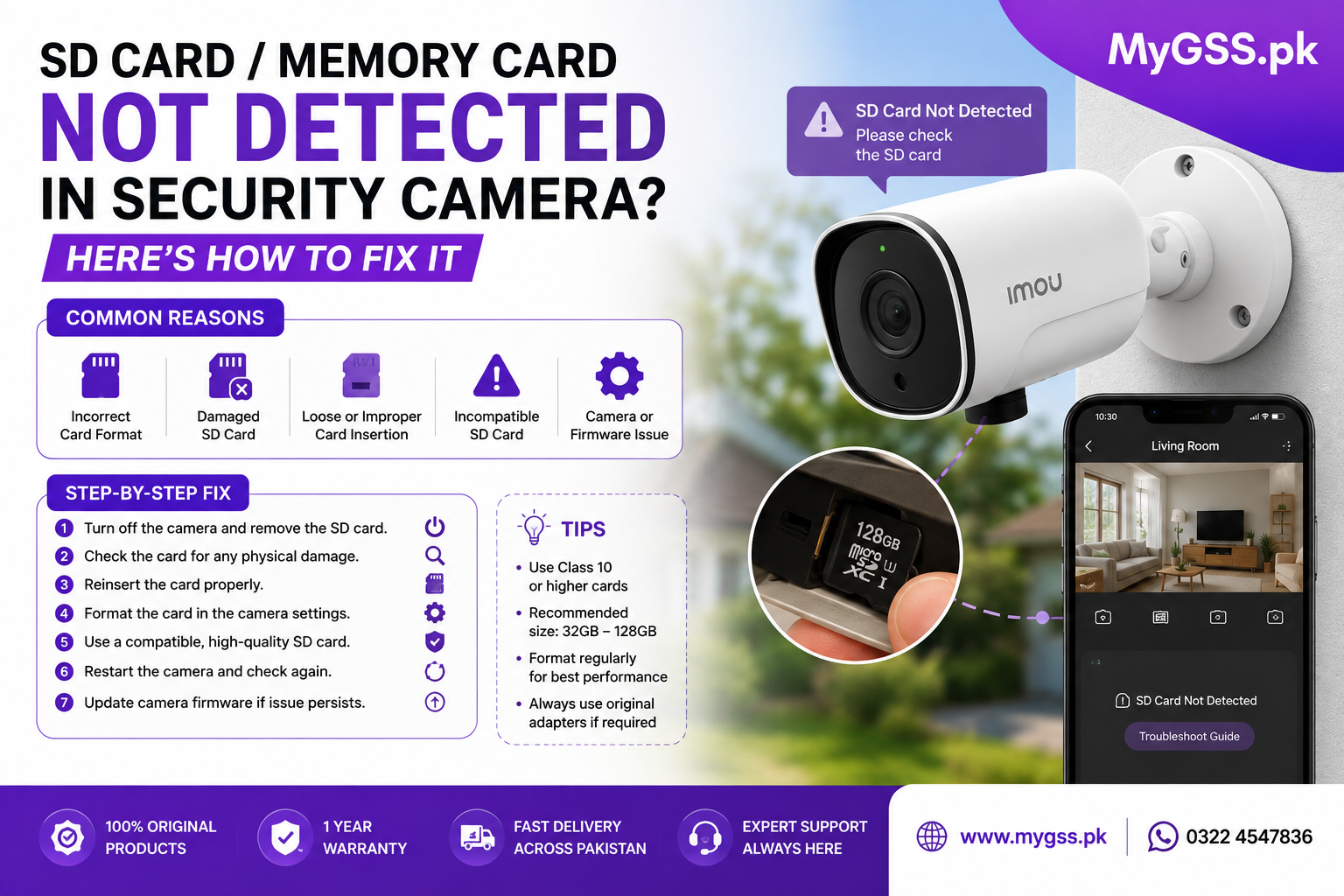
An SD card (also commonly called a memory card) error is one of the more common problems with a security camera, and it usually shows up at the worst possible time — right when you actually need to check footage. The good news is that “SD card not detected” or “memory card not detected” almost always comes down to a small set of causes, most of which you can diagnose and fix yourself without replacing the whole camera.
This guide walks through why this happens and how to fix it, step by step.
Working through these in order usually identifies the issue quickly.
Start with the simplest possible fix. Power off the camera, remove the SD card (memory card), and check that it clicks fully into place when reinserted. A card that’s slightly loose or inserted at an angle is one of the most common causes of a “not detected” error, especially after the camera has been bumped or moved during cleaning or repositioning.
Inspect the card itself for visible damage — cracks, bent contacts, or corrosion on the gold contact pins. If the pins look dirty, gently wipe them with a dry, lint-free cloth. Avoid using any liquid or cleaning solution directly on the contacts.
Not every camera supports every card size. Many older or budget models cap out at 32GB or 64GB, even if the card itself is rated much higher. Check your camera’s specifications (usually in the manual or product listing) and confirm the card you’re using falls within the supported range.
Most cameras expect FAT32 for cards under 32GB and exFAT for larger cards. If you inserted a card that was previously formatted for a computer or another device, it may use a file system the camera can’t read. Reformat the card directly through the camera’s own app or on-device menu rather than on a PC, since PC formatting tools sometimes create a file system the camera doesn’t recognize properly.
Insert the card into a laptop or a card reader to check whether it’s readable at all. If the computer also fails to detect it or shows errors, the card itself has likely failed and needs to be replaced — this rules out the camera as the source of the problem.
If you have a spare SD card, insert it and see if the camera detects it normally. If a different card works fine, the original card is the problem. If the new card also fails, the issue is more likely with the camera’s card slot or firmware.
A simple power cycle resolves more of these issues than you’d expect, particularly ones caused by a temporary software glitch rather than a hardware fault. Power the camera off, wait about 30 seconds, and power it back on with the card already inserted.
Outdated firmware occasionally causes storage detection bugs, especially after an app update changes how the camera communicates with connected hardware. Check your camera’s app for a pending firmware update, and make sure the camera stays powered and connected throughout the update process.
Non-genuine or counterfeit SD cards are a common — and often overlooked — cause of repeated detection failures. These cards frequently report a higher capacity than they actually have and tend to fail faster under continuous recording. For CCTV use specifically, it’s worth using a card rated for continuous read/write cycles (often labeled “high endurance” or “surveillance-grade”) rather than a standard consumer card meant for cameras or phones.
If none of the above resolves the issue and multiple cards fail to work in the same camera, the card slot itself may be damaged — from dust, moisture, or a bent pin inside the slot. At this point, it’s usually more practical to replace the camera than to attempt a repair, especially on lower-cost models.
If you’ve replaced the SD card (memory card) more than once on the same camera, it may be worth reconsidering your storage setup entirely. A 4G camera or WiFi model with cloud storage removes the SD card dependency altogether, while a dedicated NVR system with a proper hard drive tends to be far more reliable for continuous, multi-camera recording than relying on individual SD cards spread across several units.
Why does my security camera keep saying “SD card not detected” or “memory card not detected” even after I reinsert it? This is usually caused by a file system mismatch, a card that’s reached its write cycle limit, or a capacity the camera doesn’t support. Reformatting the card in the correct file system directly through the camera’s app resolves this in most cases.
Is a memory card the same thing as an SD card in a CCTV camera? Yes. “Memory card” and “SD card” refer to the same type of storage used in most WiFi and CCTV cameras — the terms are used interchangeably in Pakistan, and the troubleshooting steps are identical regardless of which term you use.
Can I use any SD card in my CCTV camera? Not ideally. Standard consumer SD cards aren’t built for the constant read/write cycles that continuous recording requires and tend to fail faster. A surveillance-grade or high-endurance card is a better long-term choice for any cctv camera that records continuously.
How often should I replace the SD card in my security camera? There’s no fixed timeline, but if a card is more than 1-2 years old and used for continuous recording, it’s worth checking its health regularly and replacing it proactively before it fails completely, rather than waiting for an error.
Is it safe to format an SD card directly in the camera app? Yes, and it’s actually the recommended method. Formatting through the camera’s own app or on-device menu ensures the file system matches exactly what the camera expects, which reduces the chance of compatibility issues compared to formatting on a computer.
My camera detects the card but footage still isn’t saving. What’s wrong? This is a separate issue from card detection and is usually related to recording schedule settings, motion detection sensitivity, or the card being full without auto-overwrite enabled. Check those settings in the camera’s app once the card itself is confirmed to be working.
If you’ve tried everything and the camera still won’t detect any card, our team offers free WhatsApp and phone support to help figure out whether it’s worth repairing or replacing. You can also browse current wifi camera and cctv cameras price in pakistan options on our security cameras category page if a replacement makes more sense.