Your bag is empty
Don't miss out on great deals! Start shopping or Sign in to view products added.
Shop What's New Sign in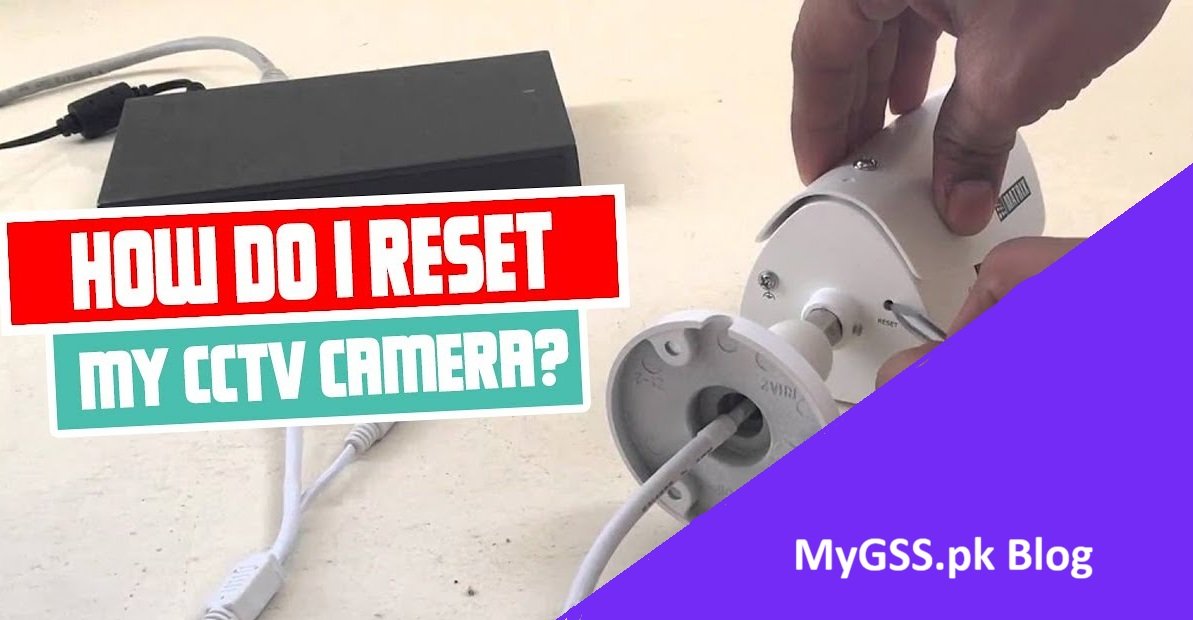
Forgetting your CCTV camera password or receiving a second-hand camera that is still bound to a previous owner’s account are two of the most common problems faced by security camera users in Pakistan. Both situations leave you completely locked out of your own device — unable to view footage, change settings, or even set the camera up fresh.
The good news is that both problems are solvable. This complete guide covers password reset and account unbinding for every major brand available at MyGSS.pk — explained clearly, step by step, for every brand.
Before we get into the brand guides, it is important to understand the difference between these two processes because they solve different problems.
Password Reset — You own the camera and have access to the registered account but have forgotten the device or app password. A reset restores factory settings and allows you to start fresh.
Account Unbinding — The camera is physically in your possession but is still linked to a previous owner’s cloud account. Even after a factory reset, some cameras remain bound to the original account and cannot be added to a new one without going through an official unbinding process.
This is where MyGSS.pk steps in. As an official distributor and authorized reseller for all major brands, we can process account unbinding requests on behalf of our customers — a service most regular shops cannot offer. If you purchased a camera from us and are facing an unbinding issue, contact us directly on WhatsApp and we will handle it for you.
VStarcam is MyGSS.pk’s flagship brand and our officially distributed product line in Pakistan. VStarcam cameras — including the CS622DR, BG622DR Solar, CS996DR, and the full range — are managed exclusively through the VStarcam Ultra app.
VStarcam cameras are among the most advanced AI smart cameras available in Pakistan today, featuring dual-lens technology, solar 4G connectivity, and AI human detection. However like all cloud-connected cameras, they can run into password and binding issues that need to be resolved properly.
Method 1 — Via VStarcam Ultra App:
Method 2 — Physical Reset Button:
VStarcam cameras are bound to the account that originally added them. If you purchased a VStarcam camera that was previously registered to another account — whether second-hand or from another seller — a factory reset alone will not free the camera from that account.
Unbinding requires verification through VStarcam’s official system and can only be processed by an authorized distributor.
As the official VStarcam distributor for Pakistan, MyGSS.pk can submit unbinding requests directly to VStarcam on your behalf. To request an unbind:
IMOU is one of Pakistan’s most popular security camera brands, known for its reliability, AI features, and wide product range. IMOU cameras available at MyGSS.pk — including the Ranger 2, Bullet 2E, Cruiser SC, and Cruiser Dual 2 — are all managed through the IMOU Life app.
Method 1 — Via IMOU Life App:
Method 2 — Physical Reset:
IMOU cameras registered under a previous owner’s IMOU Life account cannot be transferred simply by resetting. The original account holder must remove the device from their account — or an authorized channel partner must submit an unbinding request through IMOU’s official dealer portal.
MyGSS.pk is an authorized IMOU reseller in Pakistan and can process IMOU unbinding requests for our customers. Contact us on WhatsApp with the camera serial number and we will handle the unbinding process on your behalf.
EZVIZ is Hikvision’s consumer-focused brand and one of the most trusted names in home security cameras in Pakistan. EZVIZ cameras at MyGSS.pk — including the H6C Pro, H8C, CP1 Pro, H7c, and H90 — are managed through the EZVIZ App.
Method 1 — Via EZVIZ App:
Method 2 — Physical Reset:
EZVIZ uses Hikvision’s cloud infrastructure, which means account binding is tightly controlled. A camera registered to an EZVIZ account cannot be added to a new account without the original account removing it or an authorized partner submitting an official unbind request.
As an authorized EZVIZ reseller, MyGSS.pk can raise unbinding requests through EZVIZ’s official reseller channels. Send us your camera serial number on WhatsApp and we will take care of the rest.
Dahua is one of the world’s leading professional security camera manufacturers and a brand MyGSS.pk is officially authorized to sell in Pakistan. Dahua cameras — including the Hero A1 and the full Dahua range — are managed through the DMSS app for consumer devices and via a browser-based interface for professional NVR and DVR systems.
Method 1 — Via DMSS App:
Method 2 — Via Web Browser (For NVR/DVR):
Method 3 — Physical Reset:
Dahua’s DMSS cloud platform ties devices to registered accounts. A previously registered Dahua device cannot be freely transferred to a new account without proper unbinding through official channels.
MyGSS.pk as an authorized Dahua reseller can submit unbinding requests through Dahua’s official dealer system. Contact us via WhatsApp with your device serial number and proof of purchase and we will process the request for you.
Hikvision is the world’s largest security camera manufacturer and a globally trusted professional brand. Hikvision devices at MyGSS.pk are managed through the Hik-Connect app for consumer devices and through a browser or the SADP Tool for professional installations.
Method 1 — Via Hik-Connect App:
Method 2 — Via SADP Tool (Professional Systems):
Method 3 — Physical Reset:
Hikvision’s Hik-Connect platform has one of the most strictly controlled unbinding processes of all major brands. Devices registered to an account cannot simply be transferred — unbinding must be done either by the original account holder or through an authorized Hikvision channel partner with verified dealer credentials.
MyGSS.pk holds authorized reseller status for Hikvision in Pakistan and can process Hik-Connect unbinding requests through official channels. This is a service very few shops in Pakistan can offer. Contact us on WhatsApp with the device serial number and we will handle the process.
TP-Link Tapo is one of the fastest growing smart home camera brands in Pakistan, known for its ease of use and affordable pricing. Tapo cameras at MyGSS.pk — including the Tapo C200 — are managed through the Tapo App.
Method 1 — Via Tapo App:
Method 2 — Physical Reset:
Tapo cameras linked to a TP-Link account cannot be added to a new account without the original owner removing the device — or an authorized partner processing an official unbind through TP-Link’s reseller system.
As an authorized TP-Link reseller, MyGSS.pk can submit Tapo unbinding requests on your behalf. Send us your camera serial number on WhatsApp and we will take it from there.
Tenda is a trusted networking and security brand offering excellent value cameras for Pakistani homes and businesses. Tenda cameras at MyGSS.pk — including the CT6 and CP3 — are managed through the Tenda Security app.
Method 1 — Via Tenda Security App:
Method 2 — Physical Reset:
Tenda cameras registered to a previous account require official channel intervention for unbinding. A factory reset alone will not remove the cloud account binding.
MyGSS.pk as an authorized Tenda reseller can request unbinding through Tenda’s official reseller portal. Contact us on WhatsApp with your camera serial number and we will process it for you.
V380 is one of the most widely used budget-friendly camera brands in Pakistan, popular for home monitoring and small business use. V380 cameras at MyGSS.pk are managed through the V380 Pro app.
Method 1 — Via V380 Pro App:
Method 2 — Physical Reset:
V380 cameras bound to a previous account require the original account to remove the device or an authorized reseller to process an official unbind request.
MyGSS.pk can assist with V380 unbinding requests for cameras purchased through our store. Send us your serial number on WhatsApp and we will guide you through the process.
| Brand | App | Reset Time | Unbinding Via MyGSS.pk |
|---|---|---|---|
| VStarcam | VStarcam Ultra | 10 seconds | ✅ Yes |
| IMOU | IMOU Life | 10 seconds | ✅ Yes |
| EZVIZ | EZVIZ App | 5-10 seconds | ✅ Yes |
| Dahua | DMSS | 10 seconds | ✅ Yes |
| Hikvision | Hik-Connect | 10 seconds | ✅ Yes |
| TP-Link Tapo | Tapo App | 5 seconds | ✅ Yes |
| Tenda | Tenda Security | 8 seconds | ✅ Yes |
| V380 | V380 Pro | 5-10 seconds | ✅ Yes |
If you are still stuck after following the steps above, do not worry. MyGSS.pk offers free WhatsApp and phone support for all camera brands available on our store. And if you are facing an account unbinding issue, we are one of the very few stores in Pakistan with the official authorization to process unbinding requests directly with the manufacturer.
We have helped hundreds of customers across Pakistan resolve password and unbinding issues — and we are ready to help you too.
📷 Shop Genuine Security Cameras in Pakistan
Official brands. Lowest prices. Free tech support. Cash on Delivery.
👉 View All Security Cameras at MyGSS.pk