Your bag is empty
Don't miss out on great deals! Start shopping or Sign in to view products added.
Shop What's New Sign in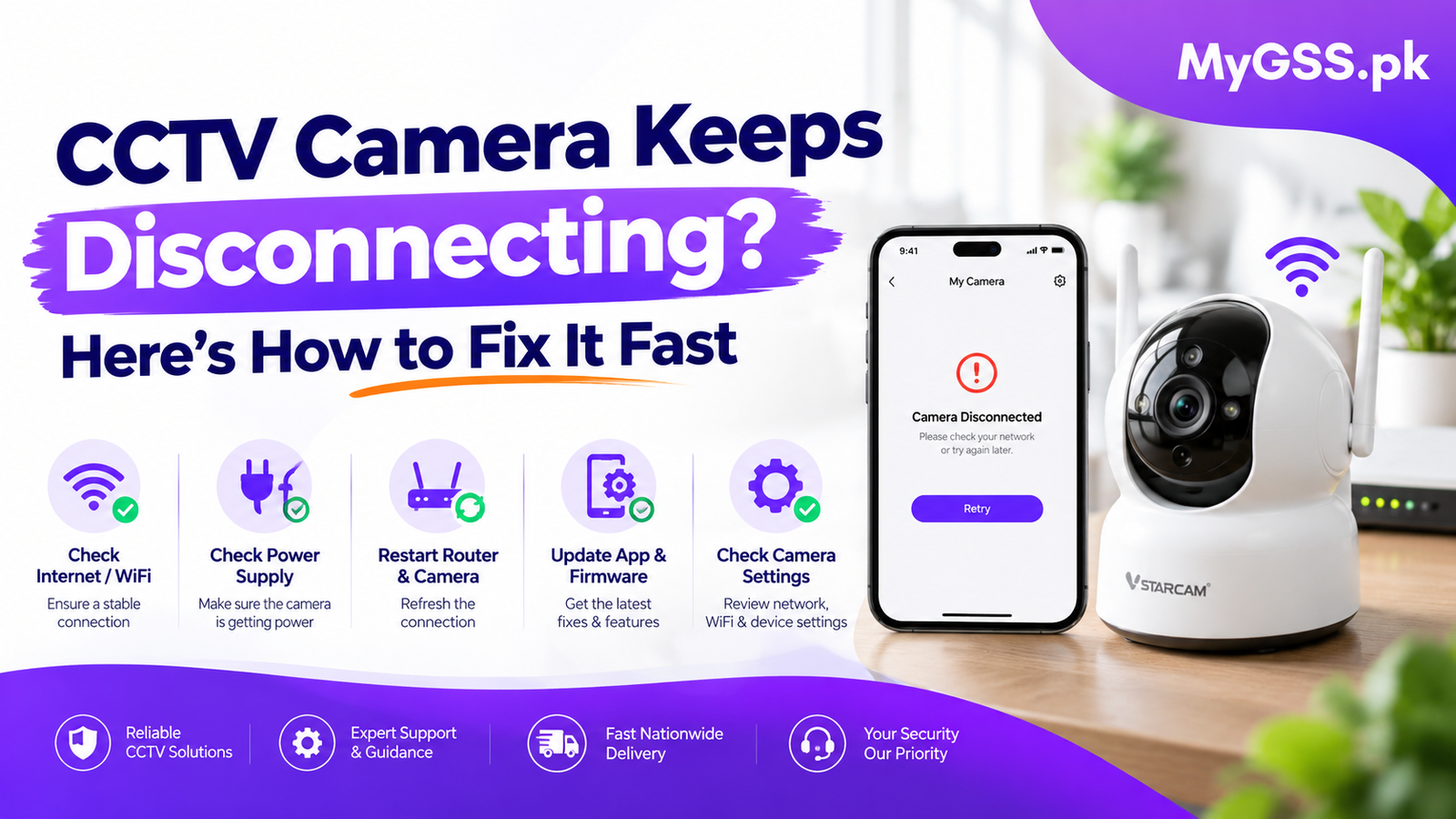
Opening your phone to check your shop or home, only to see “Camera Offline” again, is one of the most frustrating experiences for any CCTV owner in Pakistan. You are not alone. Intermittent disconnections are the number one complaint we hear at MyGSS.pk, and the good news is that most of these issues are fixable without a technician visit.
Whether you are running a WiFi camera or a 4G solar camera, this guide covers every real-world cause of CCTV cameras randomly going offline — and exactly how to fix each one.
A camera that disconnects and reconnects on its own is rarely “broken.” In reality, most offline issues are installation or environmental problems that slowly reveal themselves after weeks or months of real-world stress — heat, humidity, unstable electricity, and overloaded power supplies all take their toll.
The pattern of disconnection matters. A camera that fails only at night points to a very different cause than one that drops after rain or during peak load shedding hours. Before replacing any equipment, observe the pattern first.
This is the most common cause of intermittent CCTV disconnections, especially in smaller installations like homes, shops, and pharmacies.
Here is what usually happens: an installer uses a single centralized 12V power supply for multiple cameras. During the day, everything works fine because the IR LEDs are off. But at night, when all cameras switch to night mode and activate their infrared LEDs, the current demand spikes. The voltage drops, and cameras — usually the ones furthest from the power source — start dropping offline one by one.
The Fix:
For WiFi cameras, signal strength is everything. If the camera is mounted far from the router — especially through walls or outdoors while the router is indoors — the connection will drop intermittently.
A critical but often overlooked issue: most budget and mid-range WiFi cameras (V380, VStarcam, IMOU, etc.) only support 2.4GHz WiFi, not 5GHz. If your router broadcasts both bands under the same network name, the camera may accidentally connect to the 5GHz band and then lose connection repeatedly.
The Fix:
This is the single most common reason a WiFi camera goes offline. When your router reboots — due to a power cut, ISP maintenance, or a manual restart — the camera loses its saved connection and needs to be reconnected through the app. The same happens if you change your WiFi password.
The Fix:
If your camera is configured with a static IP address that falls inside the DHCP range of your router, another device on the network might grab the same IP, causing the camera to drop off randomly. Symptoms include the camera disappearing and reappearing, brief internet drops, and “Network disconnected” messages.
The Fix:
For IP camera systems using Power over Ethernet (PoE), an overloaded PoE switch is a classic cause of cameras randomly going offline and coming back automatically. This is dangerous because it looks like the issue “fixes itself,” but in reality, the network is unstable.
Signs of PoE overload include cameras dropping under load (when all streams are active), ports flapping, and the NVR losing connection to cameras.
The Fix:
Loose or damaged cables are a leading cause of intermittent connections. Even a slightly loose Ethernet cable or a poorly crimped RJ45 connector can cause the camera to drop offline, especially during temperature changes or vibration.
The Fix:
Outdated firmware on your camera or NVR can cause connectivity bugs that lead to random disconnections. Manufacturers regularly release updates that fix network stability issues.
The Fix:
In Pakistan, load shedding is the silent killer of CCTV reliability. When the power goes out, your WiFi router goes down, and your cameras go offline — even if the camera itself has a battery backup.
The Fix:
For 4G cameras, disconnections are often caused by an expired SIM data plan or weak cellular signal at the camera’s location.
The Fix:
In larger systems, cameras may show as offline in the NVR even when they are reachable by ping. This typically points to VLAN misconfiguration, DHCP issues, or PoE power delivery problems. Cameras might disappear under load or the NVR cannot reach a camera VLAN.
The Fix:
CCTV cameras mounted in direct sunlight or enclosed spaces can overheat, causing them to shut down intermittently. This is especially common in Pakistan’s summer months when temperatures exceed 45°C.
The Fix:
Sometimes the problem is not your camera at all — it is the app or the manufacturer’s server. If the cloud service experiences an outage, your camera may show as offline even though it is working perfectly.
The Fix:
Before calling a technician, run through this checklist:
If you have worked through all the steps above and your camera is still disconnecting, the issue may require professional diagnosis. At MyGSS.pk, we offer free technical support for all customers and can help you diagnose complex network or PoE issues.
Browse our full range of CCTV cameras, 4G solar cameras, and WiFi cameras — all backed by our Pakistan-wide support team. Whether you need a single camera for your home or a complete surveillance system for your business, we will help you choose the right setup and keep it running reliably.
Still stuck? Contact our support team on WhatsApp or visit our troubleshooting guides for step-by-step help with your specific camera model.