Your bag is empty
Don't miss out on great deals! Start shopping or Sign in to view products added.
Shop What's New Sign in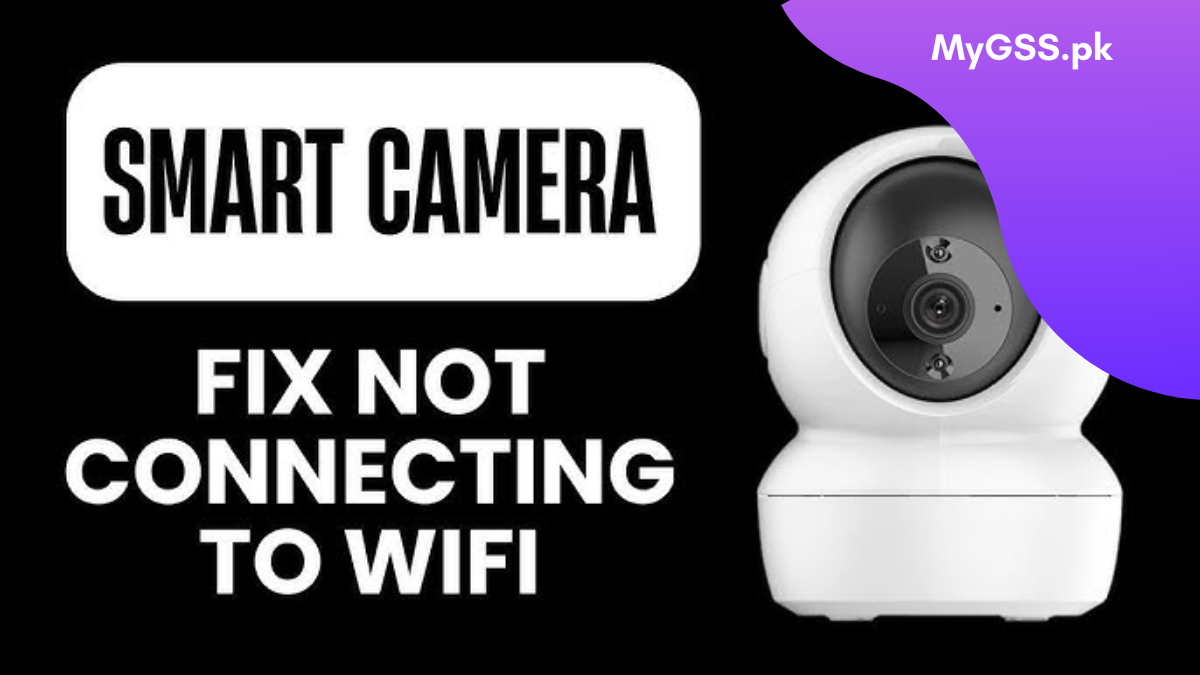
You open the app, and instead of a live feed you see “Offline” or “Device Not Connected.” It’s one of the most common issues we hear about from wifi camera owners — and the good news is, it’s almost always fixable in a few minutes without calling anyone out to your house.
Below is the troubleshooting order we walk customers through on WhatsApp every day, starting with the fastest fixes and working down to the less common causes.
Before jumping to fixes, it helps to know the usual culprits:
Now let’s go through the fixes.
Before touching the camera, confirm your internet is actually working. Open a browser on your phone (on WiFi, not mobile data) and load any website. If that fails, the problem is your internet connection or router — not the camera — and no camera troubleshooting will fix it until your WiFi itself is back up.
Unplug the camera’s power adapter, wait 15–20 seconds, then plug it back in. Give it 1–2 minutes to fully boot and reconnect. This clears out a huge share of “offline” issues on its own, especially after a power cut.
Power-cycle your router the same way — unplug, wait 30 seconds, plug back in. Routers can quietly stop assigning new connections after running for weeks without a restart, which affects every device including your camera.
This is the single most common cause of “camera won’t connect” complaints. Most WiFi cameras — including budget and mid-range models — only support the 2.4GHz band, not 5GHz. If your router broadcasts a combined network name for both bands, the camera may be trying to join 5GHz and failing silently.
Fix: log into your router settings and either split the 2.4GHz and 5GHz networks into separate names, or make sure the camera is specifically added to the 2.4GHz one.
If the camera is a long distance from the router, or separated by concrete walls, move it within a few feet of the router just for the pairing step. Once it successfully connects and updates, you can remount it in its final spot — WiFi cameras generally hold a connection better once already paired than during first setup.
If you’ve changed your WiFi password recently, the camera is still trying to connect with the old one. Re-run the pairing/QR setup in the camera’s app and re-enter the current password carefully — special characters and case sensitivity trip this up often.
This one catches a lot of people out. Many WiFi cameras — even from well-known brands — struggle to connect when the network name (SSID) or password contains special characters like spaces, & % # @ ! ' " ( ) : ; or emojis. The phone or laptop connects fine because it can handle any character, but the camera’s WiFi chip silently fails to authenticate or drops the connection right after joining.
Fix: log into your router settings and rename your WiFi network (and password, if needed) using only letters, numbers, hyphens (-), and underscores (_) — no spaces or symbols. For example, change something like Ahmed's House #2! to AhmedHouse2. After renaming, restart the router, then re-pair the camera using the new SSID and password from scratch. Once it connects successfully, you can leave your other devices on the same clean network name too, so you don’t run into this again if you add more cameras later.
Each brand uses its own app, and using the wrong one (or an outdated version) is a common snag:
Make sure the app is updated to the latest version from the Play Store/App Store, then remove the device and re-add it from scratch rather than just retrying the same connection.
Some routers block new/unrecognized devices by default through MAC address filtering, or isolate guest networks so devices can’t be controlled remotely. If you’ve enabled either setting, either add the camera’s MAC address to the allowed list or connect it to your main network instead of a guest network.
If nothing above works, do a factory reset (usually a small pinhole reset button held for 8–10 seconds) and go through the full setup again as if it were brand new. This clears any corrupted network settings stored on the camera itself.
If the camera connects to WiFi fine (shows as “online” in the app) but the live feed is choppy or keeps buffering, that’s usually a bandwidth or upload-speed issue, not a connection failure — worth checking with your ISP separately, particularly if you’re running multiple cctv camera units on the same connection.
If you’ve tried everything above and the camera still won’t connect, it may be a hardware fault with the WiFi module. In that case, reach out to us on WhatsApp with the model name and how you set it up — we offer free phone/WhatsApp support to diagnose it before you consider a return or replacement.
Why does my camera keep going offline every day at the same time? This usually points to your router rebooting on a schedule (some ISP-provided routers do this automatically overnight) or an IP address conflict where the camera’s assigned address gets reused by another device. Setting a static/reserved IP for the camera in your router settings usually resolves it.
Can I use a WiFi camera without a router, in a farmhouse or remote plot? A standard wifi camera needs a router nearby to function. For locations without WiFi infrastructure, a 4g camera that connects via SIM card is the better fit — see our separate guide on 4G SIM cameras for farms and remote locations.
Does distance from the router really matter that much? Yes. WiFi signal strength drops sharply through walls, especially concrete and metal reinforcement common in Pakistani homes. If your camera is more than one or two rooms away from the router, consider a WiFi extender or mesh point near the camera.
Can my WiFi name really stop a camera from connecting? Yes — this is more common than people expect. If your WiFi network name or password has spaces, symbols (& % # @ etc.), or emojis, some camera WiFi modules fail to authenticate even though your phone connects without any issue. Renaming your network to use only letters, numbers, hyphens, and underscores usually fixes it immediately.
My camera app shows “connected” but I still can’t see the live feed — why? This is typically a remote-access/relay issue rather than a local WiFi problem, often caused by strict router firewall settings (UPnP disabled) or a temporary outage on the brand’s cloud servers. Try viewing on mobile data instead of WiFi to confirm whether it’s local or cloud-side.
Most “offline” cctv camera issues come down to power cuts, band mismatches (5GHz vs 2.4GHz), or a changed WiFi password — all fixable yourself in under 10 minutes using the steps above. If your camera is still giving trouble after working through this list, message us on WhatsApp with your model and app name and we’ll help you sort it out, whether it’s a settings fix or something to do with your cctv camera for home setup. Browse our current WiFi and 4G camera range on the homepage if you’re due for an upgrade to a more reliable model.